How to switch baby tracker apps without losing your history
To switch baby tracker apps without losing your history, get your export or backup file from your old app, then import it. Milkstop can import a Huckleberry CSV, a Hatch CSV, a Baby Daybook backup or a Baby Tracker (Nighp) CSV export: go to Settings, choose Import from another app, check the preview, then import. You can undo an import.
We make Milkstop, so weigh our view accordingly.
Your log is your record of the early weeks. Switching apps shouldn't mean starting from a blank screen, or losing weeks of feeds, nappies (diapers) and sleep.
What Milkstop can import
- A Huckleberry CSV export
- A Hatch CSV export
- A Baby Daybook backup (.db)
- A Baby Tracker (Nighp) CSV export (csv.zip)
- The Milkstop template (for anything else; see if Milkstop can't read your file)
First, get your export or backup file from your old app, and keep a copy somewhere safe.
Moving from Baby Daybook? Our Baby Daybook alternative page compares the two apps.
Import it into Milkstop
In Milkstop, you can bring your history in from another app. You'll see a preview first, and you can undo an import. Milkstop reads the file on your device and doesn't keep it.
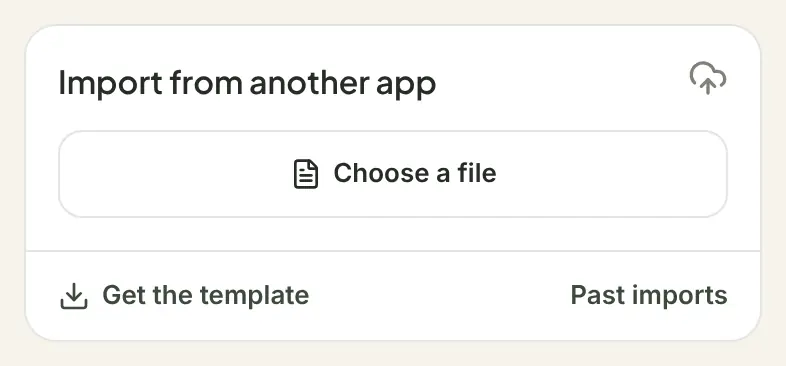
- In Milkstop, open Settings and choose Import from another app.
- Tap Choose a file and pick the file.
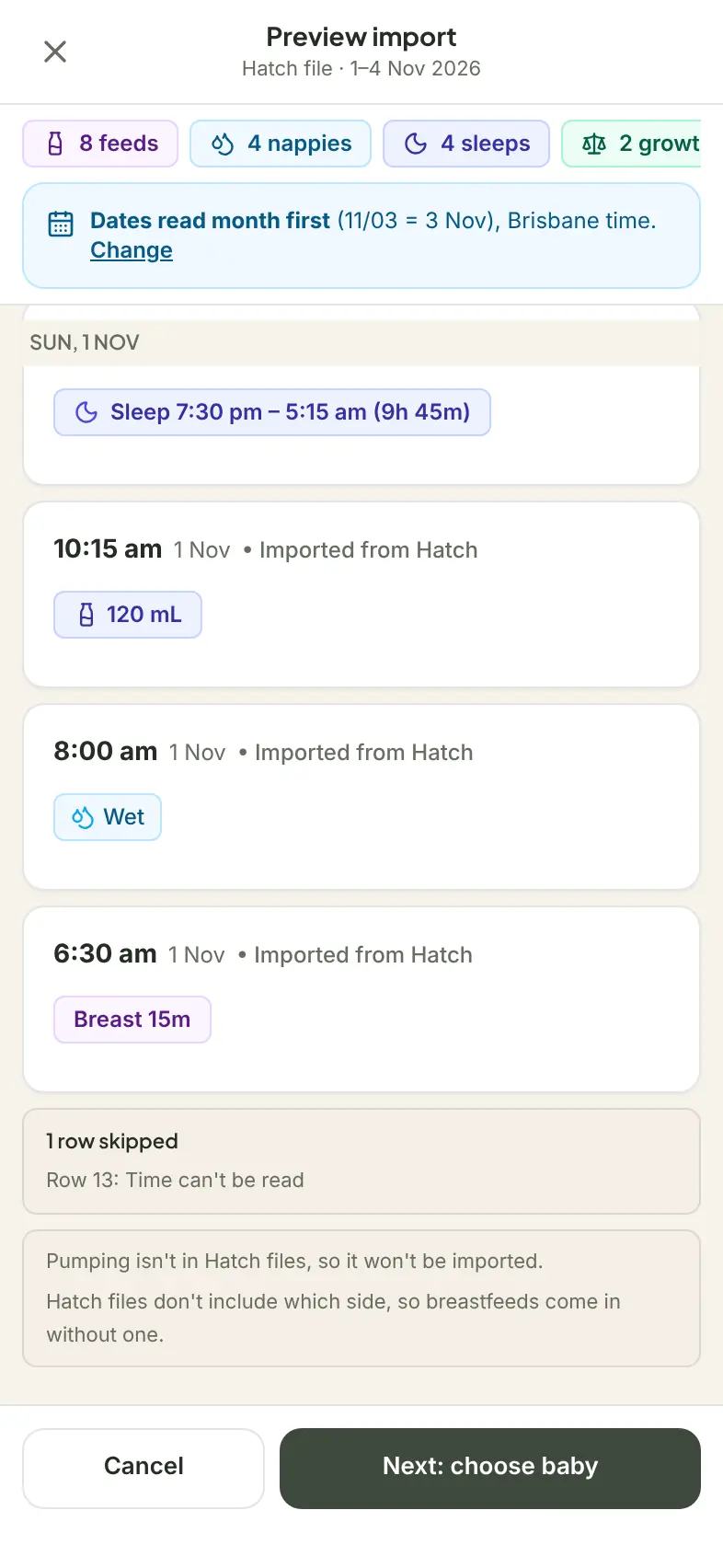
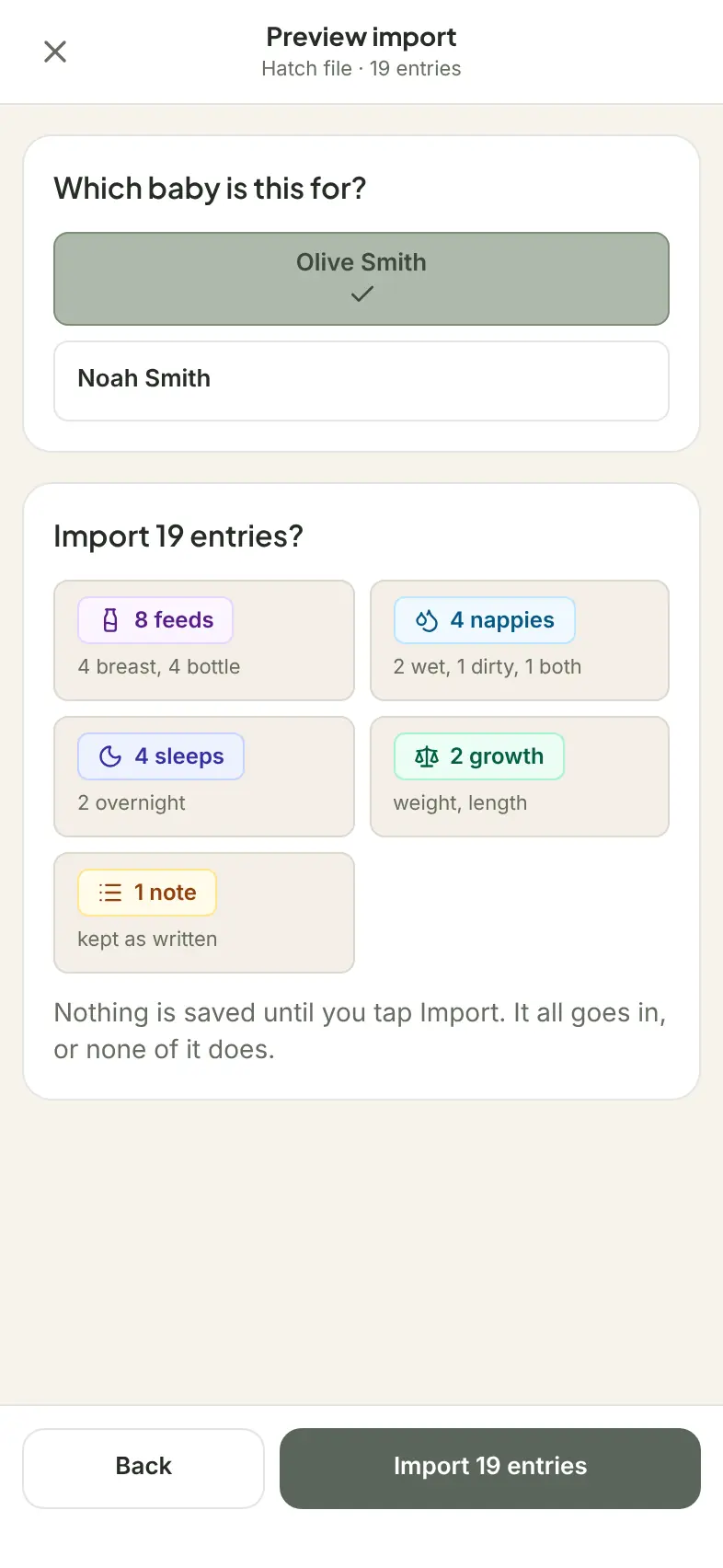
- Check the preview. It shows the entries as they'll appear in your timeline, counts of feeds, nappies, sleeps, growth and notes, anything skipped and why, and how dates are being read. If the date order or time zone is wrong, tap Change.
- Choose which baby it's for.
- Confirm. Nothing is saved until you tap Import. It all goes in, or none of it does.
- Done. Imported entries show "Imported from [app]" instead of a caregiver's name, and you can tap Undo this import if it doesn't look right.
A few things to know:
- Any caregiver in the household can import, and any caregiver can undo an import.
- You need to be online to import.
- If you import the same file again, only entries that aren't already in Milkstop are added.
- Entries you logged by hand are never replaced, and undo removes only the imported entries.
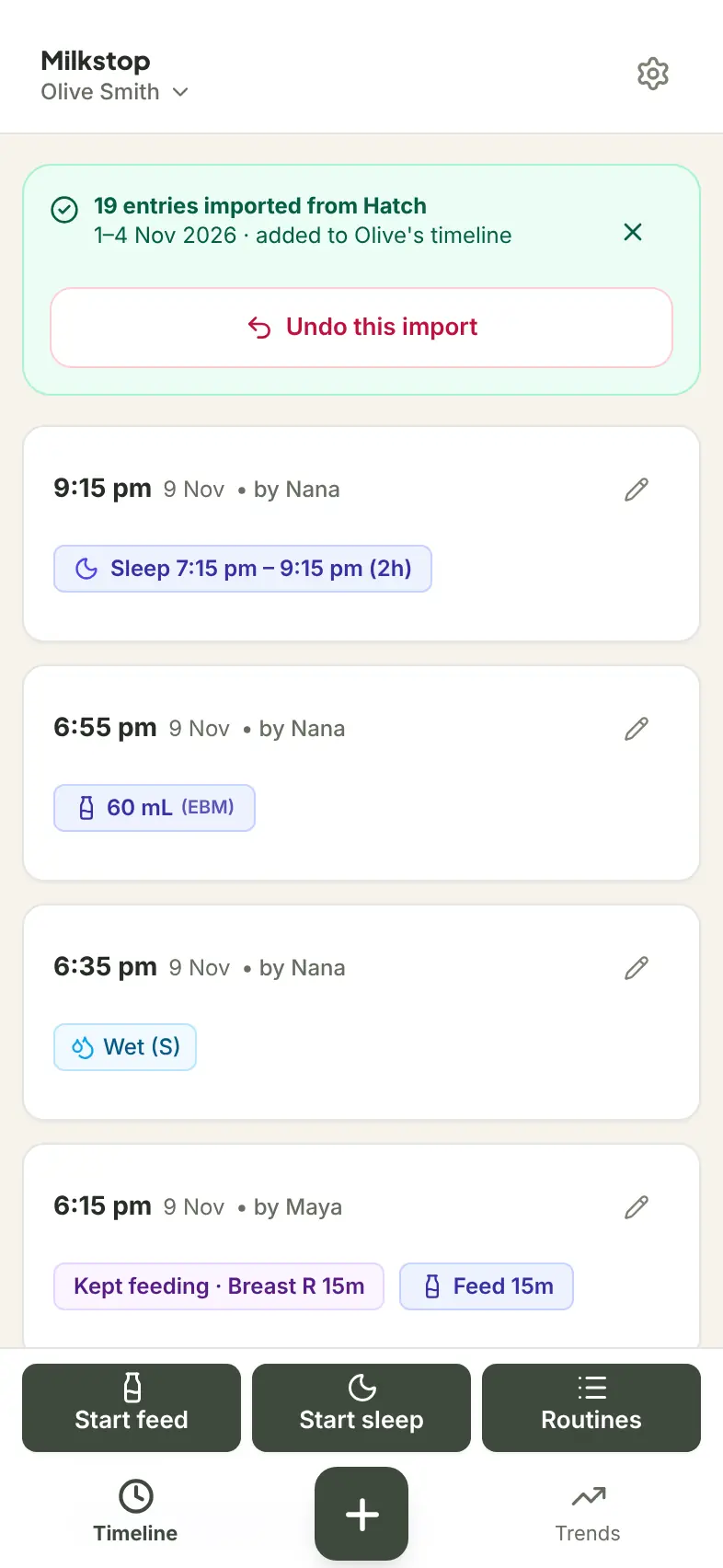
What comes across, and what doesn't
Milkstop shows what it found and anything it skipped before you import. Not everything in every file has a place in Milkstop, so check the preview first.
- Huckleberry: feeds, sleep, nappies, growth and activities like bath and tummy time come in. Medicine, solids and temperature are kept as notes.
- Hatch: Hatch files don't include which side, so breastfeeds come in without one. Pumping isn't in Hatch files, so it won't be imported.
- Baby Daybook: Medicine, solids, temperature, doctor visits, vaccinations and symptoms are kept as notes.
From any file, activities such as bath and tummy time go under your household's routines (up to 12 routines per household).
If Milkstop can't read your file
If you're moving from an app Milkstop doesn't read, such as Nara Baby, Glow Baby, Smart Sleep Coach or Baby Connect, there are two ways to bring your history in.
Use the Milkstop template. Copy your entries into our spreadsheet template, then import that. You'll find Get the template at the bottom of the Import from another app card in Settings. The template imports like any other file, with the same preview and undo.
Or email us the file. Email the file to hello@milkstop.app from your Milkstop account email and we'll try to import it for you. We delete your file within 30 days.
More on those apps: Nara Baby alternative, Smart Sleep Coach is closing and the Glow Baby alternative.
Check your timeline, then invite your household
Scroll back through your timeline to check the imported history looks right. It's part of your household's log, so it shows in the timeline and in exports for everyone in the household.
Then invite your partner, a grandparent or a carer. Our guide on how to share a baby log with your partner has the steps. Your partner's entries appear when you come back to Milkstop, or pull down on the log to refresh.
Moving on from Milkstop later
Your history isn't stuck in Milkstop either. You can export a CSV or printable PDF any time, free.
FAQs
Will I lose my baby's history if I switch apps?
Not if you keep your old app's export or backup file. Milkstop can import a Huckleberry CSV, a Hatch CSV, a Baby Daybook backup or a Baby Tracker (Nighp) CSV export, and for other apps you can copy your entries into the Milkstop template.
Which apps can Milkstop import from?
A Huckleberry CSV export, a Hatch CSV export, a Baby Daybook backup (.db), a Baby Tracker (Nighp) CSV export (csv.zip) or the Milkstop template.
What if Milkstop can't read my file?
Copy your entries into our spreadsheet template, then import that. Or email the file to hello@milkstop.app from your Milkstop account email and we'll try to import it for you. We delete your file within 30 days.
Does everything come across?
No. Milkstop shows what it found and anything it skipped before you import. For example, Hatch files don't include which side, so breastfeeds come in without one.
Can I undo an import?
Yes. Any caregiver in your household can undo an import. Undo removes only the imported entries, and entries logged by hand stay.
What if I import the same file twice?
Entries already in Milkstop aren't added again. If every entry is already there, Milkstop says: "These entries are already in Milkstop. Nothing was added."
Can my partner see the imported history?
Yes. Imported entries are part of your household's log, so everyone in the household can see them.
Is importing free?
Yes. Milkstop is free to use, with no subscriptions and no feature paywalls.
General information only. Milkstop is not intended to be a medical device and doesn't replace advice from your midwife, child health nurse, lactation consultant or doctor. If you're worried about your baby, contact a health professional. In an emergency call 000 (AU), 911 (US), 999 (UK) or 112 (EU).
Free · No subscriptions or feature paywalls · Works offline · iPhone app and web app